1) Back up your current profile
You probably don't need to do this, but I like to be careful. You can back up your current Firefox profile by simply making a copy of the default profile, which is usually stored in the C:\documents and settings\Application Data\Mozilla\Firefox\xxxxxx.default folder. Alternatively, you can use MozBackup to make a copy of your profile as well.
2) Create a new profile
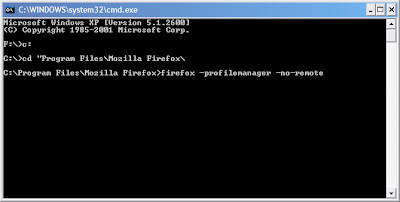
Open a command window and navigate to the folder in which Firefox 2 is installed. Here, type in "firefox -profilemanager -no-remote" to start the Firefox profile chooser.
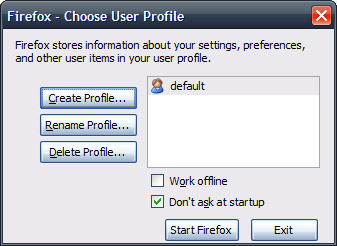
Click "Create Profile" to create a new user profile.
Name it something that makes sense, like "Firefox3Beta" and click "Finish".
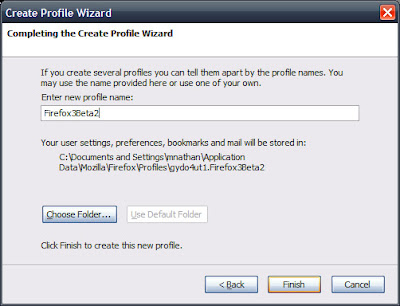
Close the profile manager when you are finished creating the profile, then install Firefox 3.
3) Firefox 3 Shortcut Setup
Before you run Firefox 3 for the first time, locate its shortcut. Right click on the shortcut and select "Properties"
In the "Target" field, you are going to add some text to the existing command. When you are done, it should look something like this:
"C:\Program Files\Mozilla Firefox 3 Beta 2\firefox.exe" -P Firefox3Beta2 -no-remote
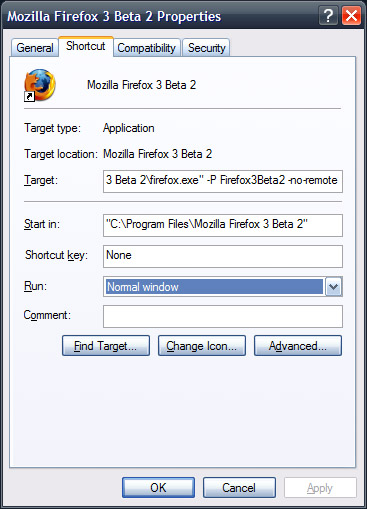
Click "OK" when you are finished and launch firefox with the shorcut you just edited.
Now you can run firefox 2 and 3 at the same time without clobbering your current firefox 2 profile!
credit: http://www.teamhackaday.com/forum/viewtopic.php?f=8&t=2843


No comments:
Post a Comment