Monday, March 23, 2009

Useful secret and hidden pages in firefox browser

Here are some of the secret pages hidden inside the Firefox browser?

Type these underlined words into your address bar to see these secret pages of Firefox!!

about:

This shows the Firefox logo, version information and other related stuffs. This can be seen from the "Help --> About" menu item also !!

about:buildconfig

This shows the build related configurations and other related information.

about:license

This shows the license related information, i.e., "Mozilla Public License"

about:cache

This page shows the images and other files stored in you cache memory.

about:plugins

This page shows the plugins installed in your Firefox browser, like flash player, adobe acrobat PDF reader etc…

about:config

This page shows a lot of settings which you can change if you want… But don’t change it if you don’t know what you are doing!!

about:credits

This page shows the credits to the people who created it!!!

about:Mozilla

This is the weirdest of all pages. This page shows a quote from “The Book of Mozilla”
This has raised a question whether is there is anything like religion of Firefox?? Quite weird anyway….

This is what you will get in that about:Mozilla page

“And so at last the beast fell and the unbelievers rejoiced. But all was not lost, for from the ash rose a great bird. The bird gazed down upon the unbelievers and cast fire and thunder upon them. For the beast had been reborn with its strength renewed, and the followers of Mammon cowered in horror.”

From The Book of Mozilla, 7:15

Enjoy browsing with Firefox !!

credit: http://bnura.blogspot.com/search/label/firefox

Friday, March 20, 2009

Hacks And Tweaks Firefox 3 via about:config

Firefox 3 Hacks And Tweaks

The following tweaks are obtained by typing about:config and then modifying the page. Make sure you take a back up copy just in case something goes wrong. Here are some of the hacks for the experimantally oriented.

Step one: Type about:config in the address bar and hit enter

Step two: Make the following modifications to the file by typing in the values on the respective fields to get the desired result (feel free to experiment)

1. To enable/disable Single Click Select URL of address bar

browser.urlbar.clickSelectsAll = True 
browser.urlbar.clickSelectsAll = False 

2. To auto Complete URL while typing in the address Bar

browser.urlbar.autoFill=True 

3. To set the number of auto complete URL in the address bar

browser.urlbar.maxRichResults = #

(# indicates the number of auto complete URLs shown. The default is 12)

4. To disabler Browser Toolbar Tip

browser.chrome.toolbar_tips = False 

5. To paste copied content by clicking the center button on the mouse

middlemouse.paste = True 

6. To disable blinking text

browser.blink_allowed = False 

7. To create a single close button to for all Firefox Opened Tabs.

browser.tabs.closeButtons = 3 

8. To increase number of recently closed tabs.

browser.sessionstore.max_tabs_undo=15 

9. Right click view source in your editor

view_source.editor.external=True
view_source.editor.path= Path of Editor 

10. To enable fast scrolling across tabs

toolkit.scrollbox.scrollIncrement =75

11. To stop displaying website icon in address bar and on the tabs

browser.chrome.site_icons = False 

12. To enable spell check in text fields

layout.spellcheckDefault = 2 

13. To speed up the browser

network.http.max-connections 30 to 96
network.http.max-connections-per-server 15 to 32
network.http.max-persistent-connections-per-server 6 to 8
network.http.pipelining false to true
network.http.proxy.pipelining false to true
network.http.pipelining.maxrequests 30 to 8
network.http.pipelining.ssl false to true
network.http.proxy.pipelining false to true 

14. To disable annoying browser behavior

Change the followowing values to 'false'

dom.disable_window_open_feature.titlebar 
dom.disable_window_open_feature.menubar 
dom.disable_window_move_resize
dom.disable_window_open_feature.toolbar 

15. To show more tabs on single window

browser.tabs.tabMinWidth = 75 

16. To display search results in new tab

browser.search.openintab=True. 

I have used many of the above about:config hacks with Firefox 2 before and it is working for the new version as well. If some thing goes wrong after applying these changes, restore your about:config to older setting.

credit: http://hubpages.com/hub/Optimizing-Firefox-3-Hacks-And-Tweaks

Thursday, March 19, 2009

how to run firefox 2 and firefox 3 at the same time

I was interested in giving Firefox 3 Beta a shot, but I didn't want to damage my Firefox 2 profile in the process. Here are a few easy steps to follow so that you can do the same.

1) Back up your current profile

You probably don't need to do this, but I like to be careful. You can back up your current Firefox profile by simply making a copy of the default profile, which is usually stored in the C:\documents and settings\Application Data\Mozilla\Firefox\xxxxxx.default folder. Alternatively, you can use MozBackup to make a copy of your profile as well.

2) Create a new profile

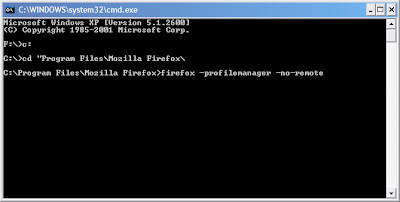
Open a command window and navigate to the folder in which Firefox 2 is installed. Here, type in "firefox -profilemanager -no-remote" to start the Firefox profile chooser.

command-line-cmd-windows-xp.jpg

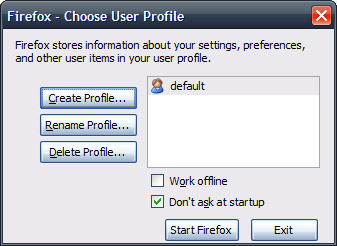
Click "Create Profile" to create a new user profile.

firefox-profile-chooser.jpg

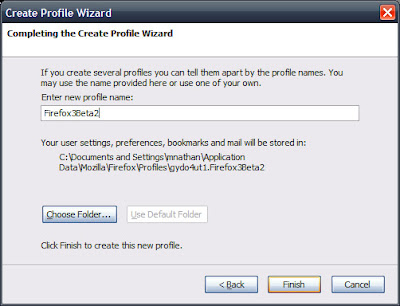
Name it something that makes sense, like "Firefox3Beta" and click "Finish".

firefox-profile-naming.jpg

Close the profile manager when you are finished creating the profile, then install Firefox 3.

3) Firefox 3 Shortcut Setup

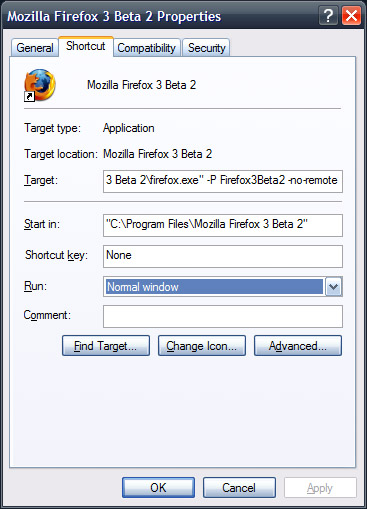
Before you run Firefox 3 for the first time, locate its shortcut. Right click on the shortcut and select "Properties"

In the "Target" field, you are going to add some text to the existing command. When you are done, it should look something like this:
"C:\Program Files\Mozilla Firefox 3 Beta 2\firefox.exe" -P Firefox3Beta2 -no-remote

firefox-shortcut-properties.jpg

Click "OK" when you are finished and launch firefox with the shorcut you just edited.

Now you can run firefox 2 and 3 at the same time without clobbering your current firefox 2 profile!

credit: http://www.teamhackaday.com/forum/viewtopic.php?f=8&t=2843