Firefox 3.5 comes with lots of new features and improvements and one such feature is private browsing. Many times if your friend or family member shares your computer, you would prefer for them not to be able to see what websites you’ve visited or what files you’ve downloaded. Firefox 3.5 “Private Browsing,” which allows you to browse the Internet without Firefox retaining any of data about which sites and pages you have visited.
In a Private Browsing session, Firefox won’t keep any browser history, search history, download history, web form history, cookies, or temporary internet files. However, files you download and bookmarks you make will be kept.
1. To enable Private Browsing in Firefox 3.5, click on the tools menu and select “Start Private Browsing” or use the keyboard shortcut CTRL +SHIFT+ P. You will be prompted with a warning message on whether you want to start private mode.
2. Once you have started Private browsing mode, it opens a new session of Firefox and your existing session will be automatically saved. You can see the private browsing mode enabled when you open any tab.
3. When you want to stop private browsing, click tools and select “Stop Private Browsing” or use the same keyboard shortcut CTRL +SHIFT+ P.
Once you have stopped private browsing, Firefox will restore your previous session of browsing.
credit : http://www.nirmaltv.com/2009/07/06/how-to-enable-private-browsing-in-firefox-3-5/
Friday, July 10, 2009

Thursday, July 9, 2009
Ultimate list of Firefox 3 Tips n Tricks Guide
In this post i have posted with all fifteen Firefox 3 tricks that you can use while browsing with most popular browser Firefox
- More screen space. Make your icons small. Go to View >> Toolbars >>Customize and check the “Use small icons” box. ;)
- Smart keywords. If there’s a search you use a lot (let’s say xyz.com’s people search), this is an awesome tool that not many people use. Right-click on the search box, select “Add a Keyword for this search”, give the keyword a name and an easy-to-type and easy-to-remember shortcut name (let’s say “actor”) and save it. Now, when you want to do an actor search, go to Firefox’s address bar, type “actor” and the name of the actor and press return. Instant search! You can do this with any search box.
- Keyboard shortcuts. This is where you become a real Jedi. It just takes a little while to learn these, but once you do, your browsing will be super fast. Here are some of the most common (and my personal favs):
- Spacebar (page down)
- Shift-Spacebar (page up)
- Ctrl+F (find)
- Alt-N (find next)
- Ctrl+D (bookmark page)
- Ctrl+T (new tab)
- Ctrl+K (go to search box)
- Ctrl+L (go to address bar)
- Ctrl+= (increase text size)
- Ctrl+- (decrease text size)
- Ctrl-W (close tab)
- F5 (reload)
- Alt-Home (go to home page)
- Auto-complete. This is another keyboard shortcut, but it’s not commonly known and very useful. Go to the address bar (Control-L) and type the name of the site without the “www” or the “.com”. Let’s say “google”. Then press Control-Enter, and it will automatically fill in the “www” and the “.com” and take you there - like magic! For .net addresses, press Shift-Enter, and for .org addresses, press Control-Shift-Enter.
- Tab navigation. Instead of using the mouse to select different tabs that you have open, use the keyboard. Here are the shortcuts:
- Ctrl+Tab (rotate forward among tabs)
- Ctrl+Shft+Tab (rotate to the previous tab)
- Ctrl+1-9 (choose a number to jump to a specific tab)
- Mouse shortcuts. Sometimes you’re already using your mouse and it’s easier to use a mouse shortcut than to go back to the keyboard. Master these cool ones:
- Middle click on link (opens in new tab)
- Shift-scroll down (previous page)
- Shift-scroll up (next page)
- Ctrl-scroll up (decrease text size)
- Ctrl-scroll down (increase text size)
- Middle click on a tab (closes tab)
- Delete items from address bar history. Firefox’s ability to automatically show previous URLs you’ve visited, as you type, in the address bar’s drop-down history menu is very cool. But sometimes you just don’t want those URLs to show up (I won’t ask why). Go to the address bar (Ctrl-L), start typing an address, and the drop-down menu will appear with the URLs of pages you’ve visited with those letters in them. Use the down-arrow to go down to an address you want to delete, and press the Delete key to make it disappear.
- User chrome. If you really want to trick out your Firefox, you’ll want to create a UserChrome.css file and customize your browser. It’s a bit complicated to get into here, but check out this tutorial.
- Create a user.js file. Another way to customize Firefox, creating a user.js file can really speed up your browsing. You’ll need to create a text file named user.js in your profile folder (see this to find out where the profile folder is) and see this example user.js file that you can modify. Created by techlifeweb.com, this example explains some of the things you can do in its comments.
- about:config. The true power user’s tool, about.config isn’t something to mess with if you don’t know what a setting does. You can get to the main configuration screen by putting about:config in the browser’s address bar. See Mozillazine’s about:config tips and screenshots.
- Add a keyword for a bookmark. Go to your bookmarks much faster by giving them keywords. Right-click the bookmark and then select Properties. Put a short keyword in the keyword field, save it, and now you can type that keyword in the address bar and it will go to that bookmark.
- Speed up Firefox. If you have a broadband connection (and most of us do), you can use pipelining to speed up your page loads. This allows Firefox to load multiple things on a page at once, instead of one at a time (by default, it’s optimized for dialup connections). Here’s how:
- Type “about:config” into the address bar and hit return. Type “network.http” in the filter field, and change the following settings (double-click on them to change them):
- Set “network.http.pipelining” to “true”
- Set “network.http.proxy.pipelining” to “true”
- Set “network.http.pipelining.maxrequests” to a number like 30. This will allow it to make 30 requests at once.
- Also, right-click anywhere and select New >>> Integer. Name it “nglayout.initialpaint.delay” and set its value to “0?. This value is the amount of time the browser waits before it acts on information it receives.
- Limit RAM usage. If Firefox takes up too much memory on your computer, you can limit the amount of RAM it is allowed to us. Again, go to about:config, filter “browser.cache” and select “browser.cache.disk.capacity”. It’s set to 50000, but you can lower it, depending on how much memory you have. Try 15000 if you have between 512MB and 1GB ram.
- Reduce RAM usage further for when Firefox is minimized. This setting will move Firefox to your hard drive when you minimize it, taking up much less memory. And there is no noticeable difference in speed when you restore Firefox, so it’s definitely worth a go. Again, go to about:config, right-click anywhere and select New-> Boolean. Name it “config.trim_on_minimize” and set it to TRUE. You have to restart Firefox for these settings to take effect.
- Move or remove the close tab button. Do you accidentally click on the close button of Firefox’s tabs? You can move them or remove them, again through about:config. Edit the preference for “browser.tabs.closeButtons”. Here are the meanings of each value:
- 0: Display a close button on the active tab only
- 1:(Default) Display close buttons on all tabs
- 2:Don’t display any close buttons
- 3:Display a single close button at the end of the tab bar (Firefox 1.x behavior)
credit: http://scrapur.com/index/10-plus-firefox-tricks/
Wednesday, July 8, 2009
8 Coolest guide to hacks to make Firefox more faster
Firefox has been outperforming IE in every department for years, and version 3 is speedier than ever.
But tweak the right settings and you could make it faster still, more than doubling your speed in some situations, all for about five minutes work and for the cost of precisely nothing at all. Here's what you need to do.
1. Enable pipelining
Browsers are normally very polite, sending a request to a server then waiting for a response before continuing. Pipelining is a more aggressive technique that lets them send multiple requests before any responses are received, often reducing page download times. To enable it, type about:config in the address bar, double-click network.http.pipelining and network.http.proxy.pipelining so their values are set to true, then double-click network.http.pipelining.maxrequests and set this to 8.
Keep in mind that some servers don't support pipelining, though, and if you regularly visit a lot of these then the tweak can actually reduce performance. Set network.http.pipelining and network.http.proxy.pipelining to false again if you have any problems.
2. Render quickly
Large, complex web pages can take a while to download. Firefox doesn't want to keep you waiting, so by default will display what it's received so far every 0.12 seconds (the "content notify interval"). While this helps the browser feel snappy, frequent redraws increase the total page load time, so a longer content notify interval will improve performance.
Type about:config and press [Enter], then right-click (Apple users ctrl-click) somewhere in the window and select New > Integer. Type content.notify.interval as your preference name, click OK, enter 500000 (that's five hundred thousand, not fifty thousand) and click OK again.
Right-click again in the window and select New > Boolean. This time create a value called content.notify.ontimer and set it to True to finish the job.
3. Faster loading
If you haven't moved your mouse or touched the keyboard for 0.75 seconds (the content switch threshold) then Firefox enters a low frequency interrupt mode, which means its interface becomes less responsive but your page loads more quickly. Reducing the content switch threshold can improve performance, then, and it only takes a moment.
Type about:config and press [Enter], right-click in the window and select New > Integer. Type content.switch.threshold, click OK, enter 250000 (a quarter of a second) and click OK to finish.
4. No interruptions
You can take the last step even further by telling Firefox to ignore user interface events altogether until the current page has been downloaded. This is a little drastic as Firefox could remain unresponsive for quite some time, but try this and see how it works for you.
Type about:config, press [Enter], right-click in the window and select New > Boolean. Type content.interrupt.parsing, click OK, set the value to False and click OK.
5. Block Flash
Intrusive Flash animations are everywhere, popping up over the content you actually want to read and slowing down your browsing. Fortunately there's a very easy solution. Install the Flashblock extension (flashblock.mozdev.org) and it'll block all Flash applets from loading, so web pages will display much more quickly. And if you discover some Flash content that isn't entirely useless, just click its placeholder to download and view the applet as normal.
6. Increase the cache size
As you browse the web so Firefox stores site images and scripts in a local memory cache, where they can be speedily retrieved if you revisit the same page. If you have plenty of RAM (2 GB of more), leave Firefox running all the time and regularly return to pages then you can improve performance by increasing this cache size. Type about:config and press [Enter], then right-click anywhere in the window and select New > Integer. Type browser.cache.memory.capacity, click OK, enter 65536 and click OK, then restart your browser to get the new, larger cache.
7. Enable TraceMonkey
TraceMonkey is a new Firefox feature that converts slow Javascript into super-speedy x86 code, and so lets it run some functions anything up to 20 times faster than the current version. It's still buggy so isn't available in the regular Firefox download yet, but if you're willing to risk the odd crash or two then there's an easy way to try it out.
Install the latest nightly build (ftp://ftp.mozilla.org/pub/firefox/nightly/latest-trunk/), launch it, type about:config in the address bar and press Enter. Type JIT in the filter box, then double-click javascript.options.jit.chrome and javascript.options.jit.content to change their values to true, and that's it - you're running the fastest Firefox Javascript engine ever.
8. Compress data
If you've a slow internet connection then it may feel like you'll never get Firefox to perform properly, but that's not necessarily true. Install toonel.net (toonel.net) and this clever Java applet will re-route your web traffic through its own server, compressing it at the same time, so there's much less to download. And it can even compress JPEGs by allowing you to reduce their quality. This all helps to cut your data transfer, useful if you're on a limited 1 GB-per-month account, and can at best double your browsing performance.
credit : http://www.techradar.com/news/software/applications/8-hacks-to-make-firefox-ridiculously-fast-468317how to disable the autocomplete feature in firefox 3 and revert the location bar settings to Firefox 2.
As a part of Firefox 3, the Location Bar got a few upgrades. One of them is that it now uses a XUL richlistbox widget for the auto-complete dropdown. This means that typing in the Location Bar will now search not only URLs, but page titles, bookmark names, and tags. A drawback to this new feature is that if you start typing something like google in your Location Bar, the things like thepiratgoogle will show up (assuming you’ve visited that site, have it bookmarked or its title is in the URL you’ve previously visited. While many folks (myself included) like this feature, some do not. This brief tutorial will show you how to disable that feature.
- To get started, enter about:config in the Firefox Location Bar
- Click the I’ll be careful, I promise! button.
- In the Filter: bar, enter browser.urlbar.matchBehavior
- Under Preference Name, a browser.urlbar.matchBehavior line should appear. Double-click it.
- Change the entry from 1, to 2. Click OK. You can close the about:config window/tab (or just visit another page).
- Now when you enter something like google in the location bar, only ebay domains will show up.
top ten Firefox 3 features and more tools for productivity
The newest version of our favorite open source web browser, Mozilla Firefox 3, offers dozens of new features and fixes, but only a handful will make the most dramatic difference in your everyday browsing. After 17 months of alphas and betas, Mozilla's finally made a feature-complete release candidate available, so it's time to spotlight the biggest improvements that will make "Gran Paradiso" the browser to beat. Nearly everything in the open-source app has gotten a second look from the minds at Mozilla, from back buttons to bookmarks, address bars to add-ons, passwords to performance, and the changes will make Firefox 3 worth the upgrade come its official release date, slated for sometime next month. Let's take a look at the 10 best upgrades in Firefox 3, and how they'll bolster your browsing, after the jump.
Note: Firefox 3 hasn't been officially released yet—a public preview release is available and intended for testers only. While it's a very stable preview, only use it if you're willing to deal with bugs and instability as the Mozilla teams ready the official release.
That said, our favorite Firefox 3 features include:
10. Souped-up Add-ons manager
A big part of what makes Firefox so special to power users is its extensibility with extensions, add-ons, plug-ins and themes, and Firefox 3's Add-ons dialog got the attention it deserved. The Fox's Add-Ons menu is more robust and intuitive on at least two fronts. You can search and install extensions and themes right from the pop-up box, no browsing required. Also, a new plug-in manager lets you enable and disable third-party helpers like Flash, QuickTime, and anything else that makes content work (and causes you grief).9. More intuitive interface overall
Mozilla tweaked and updated a whole lot of little things here and there throughout Firefox 3, which amounts to a big overall boost in usability. Most noticeably when you first switch, the Back button only appears on the address bar if there is a page to go back to, and when it does, it's bigger and easier to click. Users who want to make sites with small text more readable permanently are in luck; Firefox 3 can increase the size of images and text, or just the text, on hard-to-read sites. In addition, Firefox 3 applies favicons more consistently to bookmarks, you can click a site's favicon to get extended site identification information, you can resize the search box to hold more than two words, and the find-on-page search box automatically grabs the currently selected word, just to name a few new UI improvements.
In the long term, once webapps catch up, Firefox 3 will let you do really neat stuff in your browser, like register your favorite webapps to open certain file types, and access your online data even when you're not connected to the 'net. To get a taste, see how you can configure Firefox 3 to launch Gmail for mailto links.
8. Stronger phishing and malware protection
Firefox 3 has stronger filters and protection against malware, phishing sites, cookies, and other tools that compromise privacy and security. A malware warning shows up when you visit sites known to install malicious software, Firefox 3 doesn't show the content of knock-off sites (like PayPal "Update Your Account" phishing scams) by default, and Firefox 3 checks against Google's ever-growing blacklist of phishing sites. Now you can feel even better switching your less tech-aware relatives over to the open-source browser.7. Improved download manager
Never wonder where a download came from, or went to, again. Gran Paradiso's download manager lets you search through recent files, resume big downloads after a crash or restart, and lets you keep an eye on your transfers in the status bar.6. Native looks for every system
Your browser is a serious part of your computer time, so having it look like nothing else on your system can be seriously annoying. Firefox's designers made system integration a priority with this release, and it shows—even Windows XP's and Vista's button layouts have subtle differences in color and shading. There's differences at deeper levels, too, with Cover Flow-type styling in the add-ons manager for OS X, transparencies in key places in Vista and OS X, and other tweaks that make your browser feel like a natural extension of your system.5. Streamlined "Remember password" handling
No more guessing whether you're saving the right password or clicking "Cancel" on unnecessary pop-up requests. Gran Paradiso only asks you to utilize its password-saving function once you're already in and sure everything worked, and it won't block you from seeing the logged-out version of a page if you don't want to sign in.4. Smart bookmarks
Much like iTunes' Smart Playlists, Firefox 3's new Smart Bookmarks function can analyze your browsing habits and create lists of links based on it. The default bookmark toolbar only comes with three standards, "Most Visited," "Recently Bookmarked," and "Recent Tags" (more on that later), but it's none too hard to make your own.3. Places Organizer replaces the Bookmark Manager
Previous versions of Firefox's bookmark organizer have been pretty utilitarian affairs that make you drag and drop your links around nested folders. With Firefox 3's new Places Organizer, those with reams of URLs can find them using boolean rule searches and multi-column results, as well as keep them better organized with a tagging system. Better still, you can save those smart searches for when you next need them.2. Smart Location Bar learns how you browse
Like a personal assistant who telepathically knows when you're going to need just the right phone number (or Starbucks fix), Firefox 3's address bar, now dubbed the Smart Location Bar, helps you get to your frequently visited, or recently discovered, sites in super-quick fashion. That application you just read about on Lifehacker, but can't remember the name? Type "li" into your address bar, and Firefox instantly pulls the relevant sites from your history. The bar also learns through repetition, so the next time you start searching with "li," it knows you're looking for Lifehacker, not Linux.1. Insanely improved performance
It's not flashy, and it doesn't have any social networking features, but Firefox 3's actual performance is the best reason anyone should consider upgrading, or making the switch to the 'fox. Firefox's engineers claim that their third major release is 9.3 times faster than Internet Explorer 7 in JavaScript performance, and 2.7 times faster than Firefox 2. This means snappier browser performance when you're using webapps like Gmail, Remember the Milk, and more. Even more important, especially for Mac users, is the improved memory usage and more than 15,000 improvements that make for a less crash-prone browser. I've seen noticeable speed-ups in page loading in Linux, XP, and Vista, but the real reason I've switched over to using Release Candidate 1 is that I haven't had to cross my fingers every time a Flash-based video loads. Graphed comparison of memory use amongst browsers in Vista courtesy of John Resig.What features or changes have made you a true believer in Firefox 3? What upgrades are you still waiting to see added to the mix? Let's hear your take in the comments.
credit: http://lifehacker.com/392160/top-10-firefox-3-features
Mozilla Firefox Shortcuts for more productivity
Mozilla Firefox Shortcuts
- Ctrl + Tab or Ctrl + PageDown: Cycle through tabs.
- Ctrl + Shift + Tab or Ctrl + PageUp: Cycle through tabs in reverse.
- Ctrl + (1-9): Switch to tab corresponding to number.
- Ctrl + N: New window.
- Ctrl + T: New tab.
- Ctrl + L or Alt + D or F6: Switch focus to location bar.
- Ctrl + Enter: Open location in new tab.
- Shift + Enter: Open location in new window.
- Ctrl + K or Ctrl + E: Switch focus to search bar.
- Ctrl + O: Open a local file.
- Ctrl + W: Close tab, or window if there's only one tab open.
- Ctrl + Shift + W: Close window.
- Ctrl + S: Save page as a local file.
- Ctrl + P: Print page.
- Ctrl + F or F3: Open find toolbar.
- Ctrl + G or F3: Find next...
- Ctrl + Shift + G or Shift + F3: Find previous...
- Ctrl + B or Ctrl + I: Open Bookmarks sidebar.
- Ctrl + H: Open History sidebar.
- Escape: Stop loading page.
- Ctrl + R or F5: Reload current page.
- Ctrl + Shift + R or Ctrl + F5: Reload current page; bypass cache.
- Ctrl + U: View page source.
- Ctrl + D: Bookmark current page.
- Ctrl + NumpadPlus or Ctrl + Equals (+/=): Increase text size.
- Ctrl + NumpadMinus or Ctrl + Minus: Decrease text size.
- Ctrl + Numpad0 or Ctrl + 0: Set text size to default.
- Alt + Left or Backspace: Back.
- Alt + Right or Shift + Backspace: Forward.
- Alt + Home: Open home page.
- Ctrl + M: Open new message in integrated mail client.
- Ctrl + J: Open Downloads dialog.
- F6: Switch to next frame. You must have selected something on the page already, e.g. by use of Tab.
- Shift + F6: Switch to previous frame.
- Apostrophe ('): Find link as you type.
- Slash (/): Find text as you type.
Monday, July 6, 2009
Top Ten Firefox Addon to Improve your Productivity
Firefox is the browser of dreams for many people (myself included). One of the great perks of Firefox is that there are tons of extensions that enhance the functionality of the browser. With over 1500 extensions in existence, there are many that can be used to improve your productivity. The following is my take on the top 10 extensions that will keep you focused, reduce distractions, streamline your daily work flow, and improve your productivity.
Customize Google is a very robust extension that lets you customize many features of the services provided by Google. Customize Google lets you block advertisements on pretty much any Google page (including Gmail). It remaps Google Images search results to point directly at the images (no longer will you need to click through the originating site). Customize Google lets you add links from other search engines directly into your search results. It can also block Google click tracking and allows you to connect to Google Calendar and Gmail securely (https). Give it a try, you won’t be sorry.
2. Gspace
Gspace is a content management extension that lets you turn your Gmail account into an online mass storage device. Gspace integrates nicely into your browser and lets you drag and drop files into Gmail for backup or storage purposes without interrupting your work flow. If you use Gspace, I recommend adding a tag in Gmail to your files so they can be filtered and accessed quickly. The following is the description of Gspace from its homepage: “Gspace turns the 2GB of your Gmail account into free online storage. With Gspace you can manage unlimited Gmail accounts to store all type of files within its simple, user friendly interface. Listen to your favorite stored music directly from your Gspace, view your collections of pictures and manage your Gdrive files as well. Download Gspace now and transfer files between your computer and Gspace at anytime, from everywhere!”
3. Flashgot/DownThemAll
The default download manager built into Firefox is very handy; however, there are many occasions that you’ll find that you need more flexibility with your downloads. This is where Flashgot or DownThemAll comes in handy. The features of Flashgot and DownThemAll have their differences; however, they generally provide finer-grained control of your downloads. My personal preference is Flashgot. I recommend trying at least one of them.
4. Greasemonkey + Stylish + Ad blocking per Gozer
Greasemonkey is an extension that lets you add scripts that alter the web pages you visit. Using Greasemonkey and Stylish and Ad blocking per Gozer together will block pretty much every advertisement from any Web site you visit.
5. Flashblock
The Flashblock extension by default blocks flash from playing when a Web page is first opened. Most (distracting) advertisements are written using flash. Flashblock is particularly useful because it replaces the flash from a Web site with a “play” button so you can watch the flash if it something useful (like a video at Youtube) and leave it blocked if it is an advertisement.
Download Statusbar manages your downloads in the status bar instead of the Firefox Download Manager. I find that the download manager that comes with Firefox to be very intrusive. Download manager tucks your download progress bars into the generally unused status bar of Firefox. This lets you download care-free without the Firefox Download Manager popping up and interrupting you.
7. URL Fixer
URL fixer will replace the common typos you enter when typing a Web site into the URL bar (i.e., http://www.lifehack.rog, htp://lifehack.org). The auto correct feature of URL fixer is very helpful. “[URL Fixer] will correct common misspellings of .com, .net, .org, .edu, .gov, and .mil, as well as the protocol (http:, https:). It will also correct errors in country code TLDS such as .com.XX, .net.XX, and .org.XX.”
8. Tab Mix Plus
Many of the features of Tab Mix Plus were incorporated into the release of Firefox 2. However, Tab Mix Plus allows you to add finer-grained control of your tabs. The following is a description of Tab Mix Plus: “Tab Mix Plus enhances Firefox’s tab browsing capabilities. It includes such features as duplicating tabs, controlling tab focus, tab clicking options, undo closed tabs and windows, plus much more. It also includes a full-featured session manager with crash recovery that can save and restore combinations of opened tabs and windows.”
9. Scrapbook
Scrapbook is extremely useful for researchers and students. Scrapbook saves blurbs from Web pages to your hard drive along with the URL of the originating Web site. It allows you to organize and categorize your blurbs in a format similar to your bookmarks so that when it comes to creating a bibliography or works cited, you won’t waste any time.
10. IE Tab
I find myself using this extension less and less as more Web developers code their Web sites following standards. However, occasionally you will find it necessary to open a Web site using Internet Explorer in order for it to render correctly. Rather than taking the time to launch a separate browser, just choose “View Page in IE tab” and an Internet Explorer tab opens in Firefox. This is very useful if you like to have multiple Gmail accounts open and active on one computer.
That’s my take on the extensions that will improve your productivity. Like I previously mentioned, there are tons of Firefox extensions. What extension didn’t I mention that you can’t live without? Please tell us about your favorite productivity-enhancing Firefox extension in the comments.
credit: http://www.lifehack.org/articles/productivity/top-10-firefox-extensions-to-improve-your-productivity.html
15 coolest firefox tricks that you don't want miss
Everybody’s favorite open-source browser.
Firefox, is great right out of the box. And by adding some of the awesome extensions available out there, the browser just gets better and better.
But look under the hood, and there are a bunch of hidden (and some not-so-secret) tips and tricks available that will crank Firefox up and pimp your browser. Make it faster, cooler, more efficient. Get to be a Jedi master with the following cool Firefox tricks.
1) More screen space. Make your icons small. Go to View - Toolbars - Customize and check the “Use small icons” box.
2) Smart keywords. If there’s a search you use a lot (let’s say IMDB.com’s people search), this is an awesome tool that not many people use. Right-click on the search box, select “Add a Keyword for this search”, give the keyword a name and an easy-to-type and easy-to-remember shortcut name (let’s say “actor”) and save it. Now, when you want to do an actor search, go to Firefox’s address bar, type “actor” and the name of the actor and press return. Instant search! You can do this with any search box.
3) Keyboard shortcuts. This is where you become a real Jedi. It just takes a little while to learn these, but once you do, your browsing will be super fast. Here are some of the most common (and my personal favs):
- Spacebar (page down)
- Shift-Spacebar (page up)
- Ctrl+F (find)
- Alt-N (find next)
- Ctrl+D (bookmark page)
- Ctrl+T (new tab)
- Ctrl+K (go to search box)
- Ctrl+L (go to address bar)
- Ctrl+= (increase text size)
- Ctrl+- (decrease text size)
- Ctrl-W (close tab)
- F5 (reload)
- Alt-Home (go to home page)
4) Auto-complete. This is another keyboard shortcut, but it’s not commonly known and very useful. Go to the address bar (Control-L) and type the name of the site without the “www” or the “.com”. Let’s say “google”. Then press Control-Enter, and it will automatically fill in the “www” and the “.com” and take you there - like magic! For .net addresses, press Shift-Enter, and for .org addresses, press Control-Shift-Enter.
5) Tab navigation. Instead of using the mouse to select different tabs that you have open, use the keyboard. Here are the shortcuts:
- Ctrl+Tab (rotate forward among tabs)
- Ctrl+Shft+Tab (rotate to the previous tab)
- Ctrl+1-9 (choose a number to jump to a specific tab)
6) Mouse shortcuts. Sometimes you’re already using your mouse and it’s easier to use a mouse shortcut than to go back to the keyboard. Master these cool ones:
- Middle click on link (opens in new tab)
- Shift-scroll down (previous page)
- Shift-scroll up (next page)
- Ctrl-scroll up (decrease text size)
- Ctrl-scroll down (increase text size)
- Middle click on a tab (closes tab)
7) Delete items from address bar history. Firefox’s ability to automatically show previous URLs you’ve visited, as you type, in the address bar’s drop-down history menu is very cool. But sometimes you just don’t want those URLs to show up (I won’t ask why). Go to the address bar (Ctrl-L), start typing an address, and the drop-down menu will appear with the URLs of pages you’ve visited with those letters in them. Use the down-arrow to go down to an address you want to delete, and press the Delete key to make it disappear.
8) User chrome. If you really want to trick out your Firefox, you’ll want to create a UserChrome.css file and customize your browser. It’s a bit complicated to get into here, but check out this tutorial.
9) Create a user.js file. Another way to customize Firefox, creating a user.js file can really speed up your browsing. You’ll need to create a text file named user.js in your profile folder (see this to find out where the profile folder is) and see this example user.js file that you can modify. Created by techlifeweb.com, this example explains some of the things you can do in its comments.
10) about:config. The true power user’s tool, about.config isn’t something to mess with if you don’t know what a setting does. You can get to the main configuration screen by putting about:config in the browser’s address bar. See Mozillazine’s about:config tips and screenshots.
11) Add a keyword for a bookmark. Go to your bookmarks much faster by giving them keywords. Right-click the bookmark and then select Properties. Put a short keyword in the keyword field, save it, and now you can type that keyword in the address bar and it will go to that bookmark.
12) Speed up Firefox. If you have a broadband connection (and most of us do), you can use pipelining to speed up your page loads. This allows Firefox to load multiple things on a page at once, instead of one at a time (by default, it’s optimized for dialup connections). Here’s how:
- Type “about:config” into the address bar and hit return. Type “network.http” in the filter field, and change the following settings (double-click on them to change them):
- Set “network.http.pipelining” to “true”
- Set “network.http.proxy.pipelining” to “true”
- Set “network.http.pipelining.maxrequests” to a number like 30. This will allow it to make 30 requests at once.
- Also, right-click anywhere and select New-> Integer. Name it “nglayout.initialpaint.delay” and set its value to “0″. This value is the amount of time the browser waits before it acts on information it receives.
13) Limit RAM usage. If Firefox takes up too much memory on your computer, you can limit the amount of RAM it is allowed to us. Again, go to about:config, filter “browser.cache” and select “browser.cache.disk.capacity”. It’s set to 50000, but you can lower it, depending on how much memory you have. Try 15000 if you have between 512MB and 1GB ram.
14) Reduce RAM usage further for when Firefox is minimized. This setting will move Firefox to your hard drive when you minimize it, taking up much less memory. And there is no noticeable difference in speed when you restore Firefox, so it’s definitely worth a go. Again, go to about:config, right-click anywhere and select New-> Boolean. Name it “config.trim_on_minimize” and set it to TRUE. You have to restart Firefox for these settings to take effect.
15) Move or remove the close tab button. Do you accidentally click on the close button of Firefox’s tabs? You can move them or remove them, again through about:config. Edit the preference for “browser.tabs.closeButtons”. Here are the meanings of each value:
- 0: Display a close button on the active tab only
- 1:(Default) Display close buttons on all tabs
- 2:Don’t display any close buttons
- 3:Display a single close button at the end of the tab bar (Firefox 1.x behavior)
Got any favorite Firefox tips or tricks of your own? Let us know in the comments.
credit: http://www.lifehack.org/articles/technology/15-coolest-firefox-tricks-ever.html
Monday, March 23, 2009
Useful secret and hidden pages in firefox browser
Here are some of the secret pages hidden inside the Firefox browser?
Type these underlined words into your address bar to see these secret pages of Firefox!!
about:
credit: http://bnura.blogspot.com/search/label/firefox
Type these underlined words into your address bar to see these secret pages of Firefox!!
about:
This shows the Firefox logo, version information and other related stuffs. This can be seen from the "Help --> About" menu item also !!
This shows the build related configurations and other related information.
about:licenseThis shows the license related information, i.e., "Mozilla Public License"
This page shows the images and other files stored in you cache memory.
This page shows the plugins installed in your Firefox browser, like flash player, adobe acrobat PDF reader etc…
This page shows a lot of settings which you can change if you want… But don’t change it if you don’t know what you are doing!!
This page shows the credits to the people who created it!!!
about:Mozilla
This is the weirdest of all pages. This page shows a quote from “The Book of Mozilla”
This has raised a question whether is there is anything like religion of Firefox?? Quite weird anyway….
This is what you will get in that about:Mozilla page
“And so at last the beast fell and the unbelievers rejoiced. But all was not lost, for from the ash rose a great bird. The bird gazed down upon the unbelievers and cast fire and thunder upon them. For the beast had been reborn with its strength renewed, and the followers of Mammon cowered in horror.”
From The Book of Mozilla, 7:15
credit: http://bnura.blogspot.com/search/label/firefox
Friday, March 20, 2009
Hacks And Tweaks Firefox 3 via about:config
Firefox 3 Hacks And Tweaks
The following tweaks are obtained by typing about:config and then modifying the page. Make sure you take a back up copy just in case something goes wrong. Here are some of the hacks for the experimantally oriented.
Step one: Type about:config in the address bar and hit enter
Step two: Make the following modifications to the file by typing in the values on the respective fields to get the desired result (feel free to experiment)
1. To enable/disable Single Click Select URL of address bar
browser.urlbar.clickSelectsAll = True
browser.urlbar.clickSelectsAll = False
2. To auto Complete URL while typing in the address Bar
browser.urlbar.autoFill=True
3. To set the number of auto complete URL in the address bar
browser.urlbar.maxRichResults = #
(# indicates the number of auto complete URLs shown. The default is 12)
4. To disabler Browser Toolbar Tip
browser.chrome.toolbar_tips = False
5. To paste copied content by clicking the center button on the mouse
middlemouse.paste = True
6. To disable blinking text
browser.blink_allowed = False
7. To create a single close button to for all Firefox Opened Tabs.
browser.tabs.closeButtons = 3
8. To increase number of recently closed tabs.
browser.sessionstore.max_tabs_undo=15
9. Right click view source in your editor
view_source.editor.external=True
view_source.editor.path= Path of Editor
10. To enable fast scrolling across tabs
toolkit.scrollbox.scrollIncrement =75
11. To stop displaying website icon in address bar and on the tabs
browser.chrome.site_icons = False
12. To enable spell check in text fields
layout.spellcheckDefault = 2
13. To speed up the browser
network.http.max-connections 30 to 96
network.http.max-connections-per-server 15 to 32
network.http.max-persistent-connections-per-server 6 to 8
network.http.pipelining false to true
network.http.proxy.pipelining false to true
network.http.pipelining.maxrequests 30 to 8
network.http.pipelining.ssl false to true
network.http.proxy.pipelining false to true
14. To disable annoying browser behavior
Change the followowing values to 'false'
dom.disable_window_open_feature.titlebar
dom.disable_window_open_feature.menubar
dom.disable_window_move_resize
dom.disable_window_open_feature.toolbar
15. To show more tabs on single window
browser.tabs.tabMinWidth = 75
16. To display search results in new tab
browser.search.openintab=True.
I have used many of the above about:config hacks with Firefox 2 before and it is working for the new version as well. If some thing goes wrong after applying these changes, restore your about:config to older setting.
credit: http://hubpages.com/hub/Optimizing-Firefox-3-Hacks-And-Tweaks
Thursday, March 19, 2009
how to run firefox 2 and firefox 3 at the same time
I was interested in giving Firefox 3 Beta a shot, but I didn't want to damage my Firefox 2 profile in the process. Here are a few easy steps to follow so that you can do the same.
1) Back up your current profile
You probably don't need to do this, but I like to be careful. You can back up your current Firefox profile by simply making a copy of the default profile, which is usually stored in the C:\documents and settings\Application Data\Mozilla\Firefox\xxxxxx.default folder. Alternatively, you can use MozBackup to make a copy of your profile as well.
2) Create a new profile
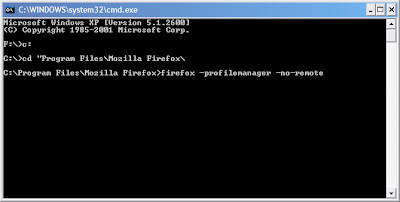
Open a command window and navigate to the folder in which Firefox 2 is installed. Here, type in "firefox -profilemanager -no-remote" to start the Firefox profile chooser.
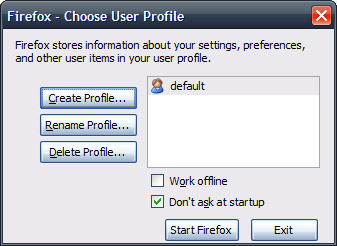
Click "Create Profile" to create a new user profile.
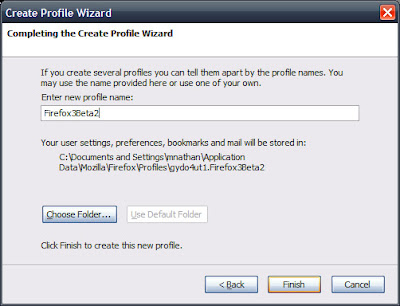
Name it something that makes sense, like "Firefox3Beta" and click "Finish".
Close the profile manager when you are finished creating the profile, then install Firefox 3.
3) Firefox 3 Shortcut Setup
Before you run Firefox 3 for the first time, locate its shortcut. Right click on the shortcut and select "Properties"
In the "Target" field, you are going to add some text to the existing command. When you are done, it should look something like this:
"C:\Program Files\Mozilla Firefox 3 Beta 2\firefox.exe" -P Firefox3Beta2 -no-remote
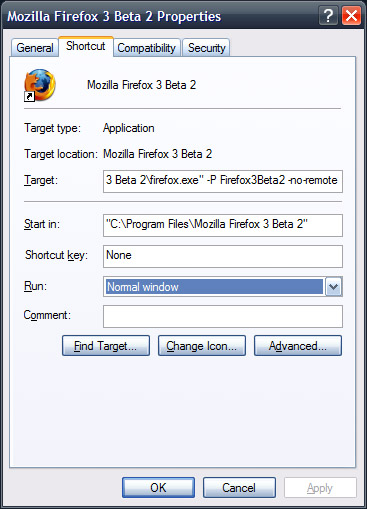
Click "OK" when you are finished and launch firefox with the shorcut you just edited.
Now you can run firefox 2 and 3 at the same time without clobbering your current firefox 2 profile!
credit: http://www.teamhackaday.com/forum/viewtopic.php?f=8&t=2843
1) Back up your current profile
You probably don't need to do this, but I like to be careful. You can back up your current Firefox profile by simply making a copy of the default profile, which is usually stored in the C:\documents and settings\Application Data\Mozilla\Firefox\xxxxxx.default folder. Alternatively, you can use MozBackup to make a copy of your profile as well.
2) Create a new profile
Open a command window and navigate to the folder in which Firefox 2 is installed. Here, type in "firefox -profilemanager -no-remote" to start the Firefox profile chooser.
Click "Create Profile" to create a new user profile.
Name it something that makes sense, like "Firefox3Beta" and click "Finish".
Close the profile manager when you are finished creating the profile, then install Firefox 3.
3) Firefox 3 Shortcut Setup
Before you run Firefox 3 for the first time, locate its shortcut. Right click on the shortcut and select "Properties"
In the "Target" field, you are going to add some text to the existing command. When you are done, it should look something like this:
"C:\Program Files\Mozilla Firefox 3 Beta 2\firefox.exe" -P Firefox3Beta2 -no-remote
Click "OK" when you are finished and launch firefox with the shorcut you just edited.
Now you can run firefox 2 and 3 at the same time without clobbering your current firefox 2 profile!
credit: http://www.teamhackaday.com/forum/viewtopic.php?f=8&t=2843
Subscribe to:
Posts (Atom)

